Install Docker Desktop on Windows Install interactively Double-click Docker Desktop Installer.exe to run the installer.
If you haven’t already downloaded the installer (Docker Desktop Installer.exe), you can get it from Docker Hub. It typically downloads to your Downloads folder, or you can run it from the recent downloads bar at the bottom of your web browser.
When prompted, ensure the Use WSL 2 instead of Hyper-V option on the Configuration page is selected or not depending on your choice of backend.
If your system only supports one of the two options, you will not be able to select which backend to use.
Follow the instructions on the installation wizard to authorize the installer and proceed with the install.
When the installation is successful, click Close to complete the installation process.
If your admin account is different to your user account, you must add the user to the docker-users group. Run Computer Management as an administrator and navigate to Local Users and Groups > Groups > docker-users. Right-click to add the user to the group. Log out and log back in for the changes to take effect.
exe finished sucess
we can see like this
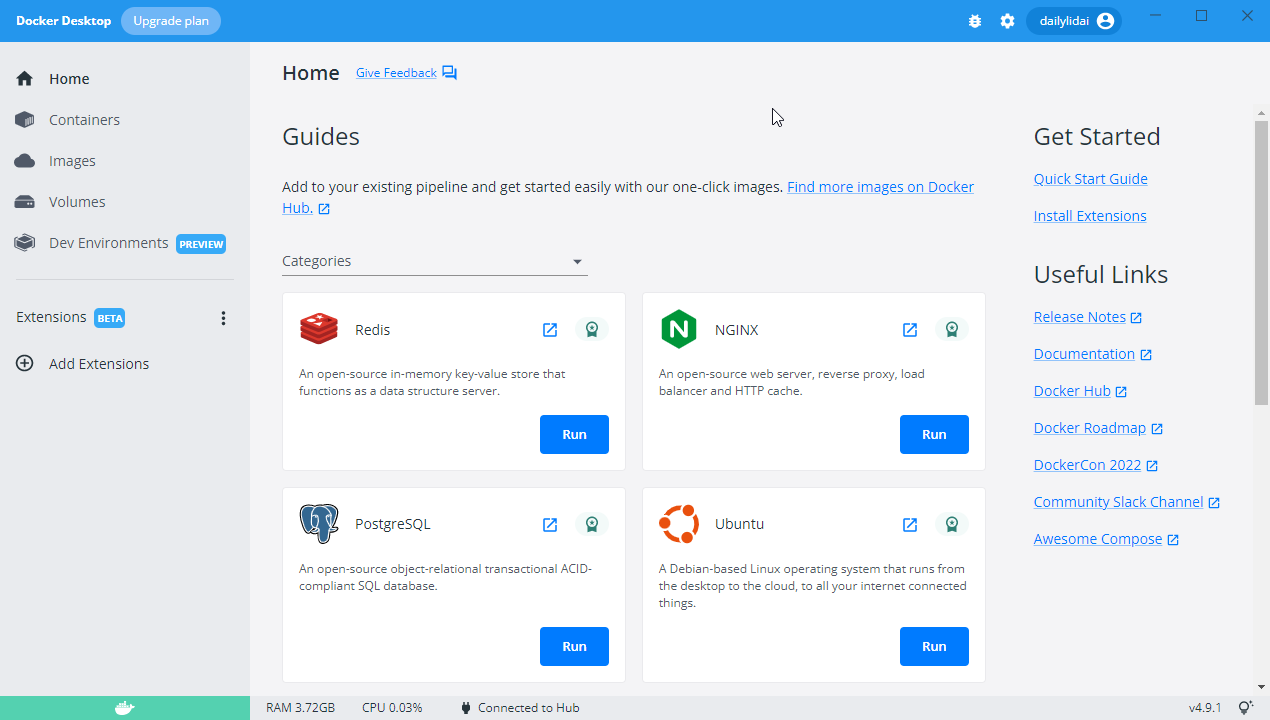
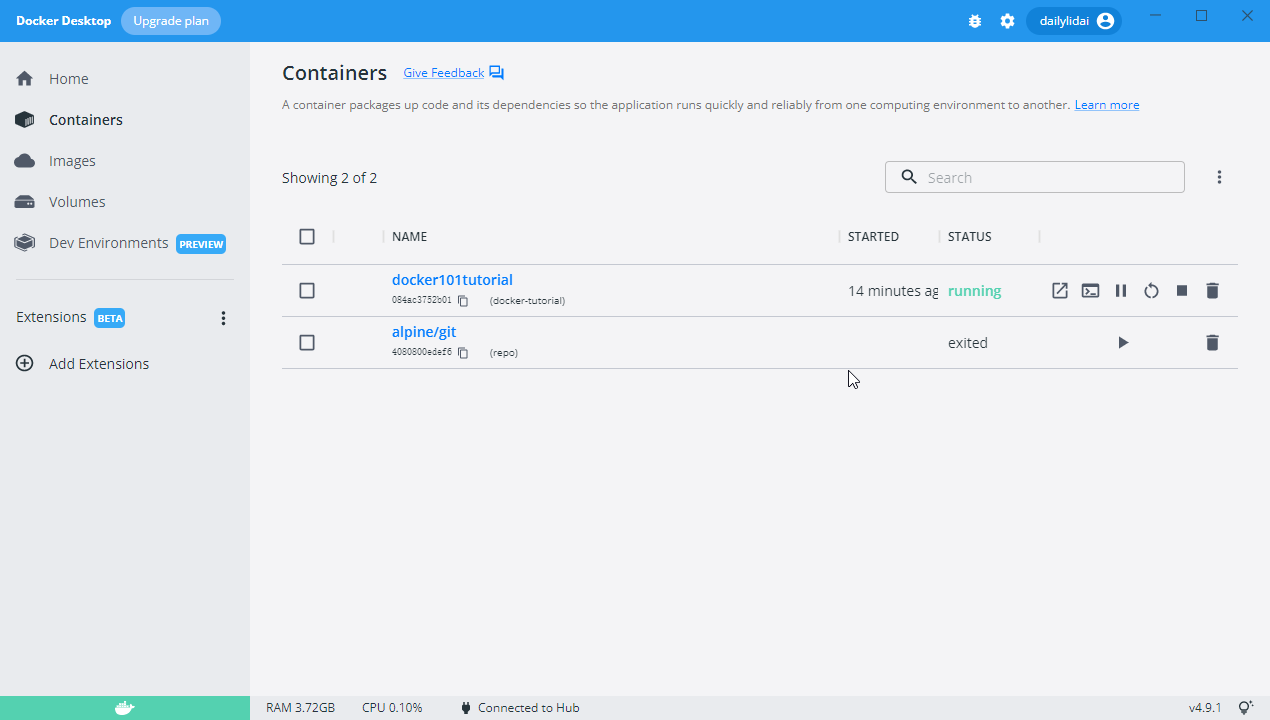
-
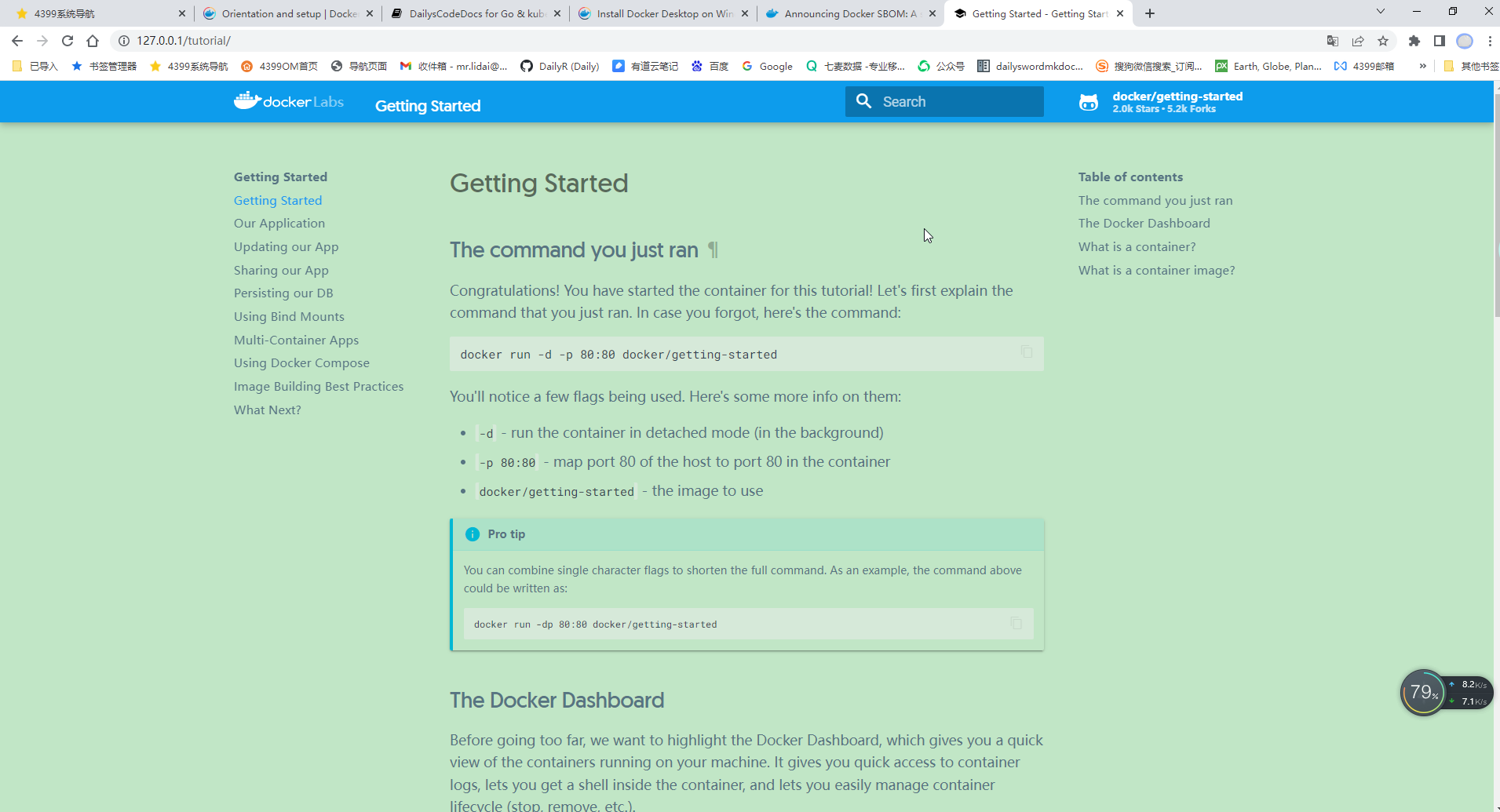
-
1、安装docker
- 2、安装kubectl
- 3、安装minikube
- 4、启动minikube
- 5、 验证
- 查看minikube 运行状态
- 使用kubectl获取namesapce资源
- 6、 dashboard